MuJoCo Ant
by Google DeepMind
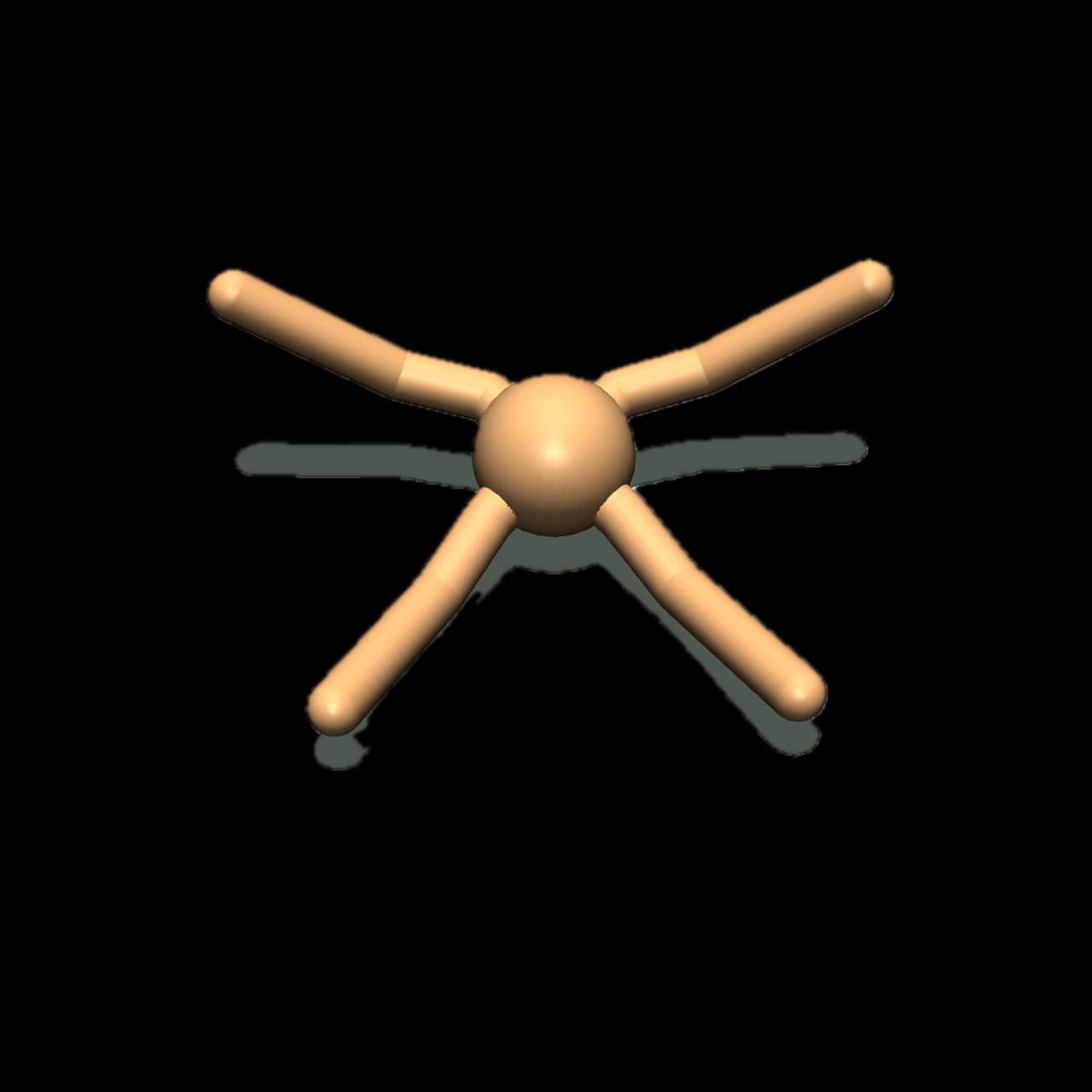
An 8 degree-of-freedom quadruped robot inspired by insect locomotion. Features four legs with two actuated joints each, enabling diverse gait patterns and terrain navigation. Excellent for studying multi-legged coordination, stability control, and adaptive locomotion strategies. This model challenges learners to coordinate multiple limbs simultaneously while maintaining balance and forward progress.
Specifications
- Manufacturer
- Google DeepMind
- Type
- Quadruped Robot
- Environment
- Simulated
- Category
- MuJoCo Physics Simulator
- Controller
- MuJoCo
- Sensors
- Joint positionJoint velocityTorso orientationCenter of massGround contact
- Actuators
- Torque servoPosition servo
- Connectivity
- ZMQLocal
Getting started
MuJoCo Ant Integration Guide
Overview
The MuJoCo Ant is an 8-DOF quadruped robot inspired by insect locomotion. This model challenges FEAGI's neural circuits to coordinate four legs simultaneously while maintaining balance and generating forward locomotion across diverse terrains.
Model Specifications
- Degrees of Freedom: 8
- Actuators: 8 (2 joints per leg)
- Body Segments: Central torso + 4 legs (front-left, front-right, back-left, back-right)
- Control Frequency: 50 Hz
- Simulation Timestep: 0.01s
Sensory Capabilities
Joint Sensors
- Joint Position: Current angle of each actuated joint (8 values)
- Joint Velocity: Angular velocity of each joint (8 values)
Body State Sensors
- Torso Orientation: Quaternion representing torso rotation in 3D space
- Center of Mass: XYZ position and velocity of the robot's center of mass
- Ground Contact: Binary sensors for each leg indicating ground contact (4 values)
Environmental Sensors
- Height Above Ground: Distance from torso to ground plane
- Forward Velocity: Speed in the forward direction
Motor Capabilities
Actuator Types
- Torque Control: Direct torque commands for each joint
- Position Control: Target joint angles (alternative control mode)
Joint Organization
- Front-Left Leg: Hip joint, knee joint
- Front-Right Leg: Hip joint, knee joint
- Back-Left Leg: Hip joint, knee joint
- Back-Right Leg: Hip joint, knee joint
Joint Ranges
- Hip joints: ±45°
- Knee joints: ±90°
FEAGI Integration
Cortical Mapping
i_joint_position: 8 neurons (one per joint angle)i_joint_velocity: 8 neurons (angular velocities)i_orientation: 4 neurons (quaternion)i_com_state: 6 neurons (XYZ position + XYZ velocity)i_ground_contact: 4 neurons (one per leg)i_height: 1 neuron (height above ground)
o_joint_control: 8 neurons (torque or position commands)
Neural Circuit Design Tips
- Gait Pattern Generation: Create CPG circuits for rhythmic leg movements
- Diagonal Coordination: Coordinate diagonal leg pairs (FL-BR, FR-BL)
- Balance Control: Use torso orientation to maintain upright posture
- Adaptive Gaits: Switch between walking, trotting, and running based on speed
- Ground Contact Feedback: Use leg contact to trigger stance/swing transitions
Controller Setup
Prerequisites
- MuJoCo physics engine (included with controller)
- Python 3.8+
- FEAGI Python SDK
Installation
The generic MuJoCo controller handles all models. When launching the ant:
python controller.py --model_xml ant.xml --agent_id mujoco_ant_01
Controller Parameters
--ip: FEAGI IP address (default: 127.0.0.1)--model_xml: Model file (ant.xml)--agent_id: Unique agent identifier--cortical_input: Input cortical area name (default: i_vision)--cortical_output: Output cortical area name (default: o_motor)
Recommended Learning Tasks
Beginner
- Stand Upright: Maintain torso above ground without collapsing
- Single Leg Lift: Lift and move one leg while balancing on three
- Stationary Balance: Hold steady position with all legs on ground
Intermediate
- Forward Crawl: Generate slow forward locomotion
- Diagonal Gait: Coordinate diagonal leg pairs for walking
- Turn in Place: Rotate body without moving forward
- Backward Movement: Reverse locomotion
Advanced
- Fast Trot: Achieve high-speed forward locomotion
- Obstacle Navigation: Walk around or over small obstacles
- Terrain Adaptation: Adjust gait for slopes, uneven surfaces
- Energy Efficiency: Minimize torque while maintaining speed
Troubleshooting
Robot Collapses Immediately
- Check that torso orientation sensors are connected
- Verify ground contact sensors provide feedback
- Ensure joint angles are within valid ranges
- Increase torso height initial condition
Unable to Move Forward
- Verify gait pattern generates alternating leg movements
- Check diagonal leg coordination (FL-BR, FR-BL)
- Ensure ground contact triggers push-off phase
- Review torque magnitudes (may be too weak)
Unstable or Tipping Over
- Implement center-of-mass feedback control
- Add torso orientation stabilization circuits
- Reduce movement speed initially
- Ensure all four legs make ground contact during stance
Spinning or Moving Sideways
- Check symmetry of left/right leg commands
- Balance front/back leg coordination
- Add directional feedback from COM velocity
Resources
- MuJoCo Documentation: https://mujoco.readthedocs.io/
- FEAGI Documentation: https://feagi.org/docs
- Example Genomes: Check the FEAGI marketplace for pre-trained locomotion controllers
- Gait Patterns: Research quadruped gaits (walk, trot, gallop) for inspiration
Support
For integration questions or issues:
- Discord: https://discord.gg/feagi
- GitHub Issues: https://github.com/feagi/feagi
Connecting to FEAGI
MuJoCo Ant - Connectivity
Connection Type
The MuJoCo Ant runs on your local machine and connects to FEAGI via:
- ZMQ for sensory data (joint positions, velocities, orientation)
- ZMQ for motor commands (joint control signals)
- HTTP for registration and metadata
Network Requirements
Ports Used
- 5555: Sensory data (ZMQ PUB socket)
- 30005: Motor commands (ZMQ SUB socket)
- 30001: Agent registration (TCP)
Firewall Configuration
Ensure these ports are open for localhost communication:
# macOS
sudo pfctl -d  # Disable firewall temporarily for testing

# Linux
sudo ufw allow 5555
sudo ufw allow 30005
sudo ufw allow 30001

# Windows
# Open Windows Firewall settings and allow these ports
Controller Setup
Installation
The generic MuJoCo controller is installed once and can run any MuJoCo model.
- Navigate to Embodiment Explorer
- Select "MuJoCo Physics Simulator" category
- Click on "MuJoCo Ant"
- Click "Launch" (controller installs automatically if needed)
# Clone controller repository
git clone https://github.com/feagi/embodiment-controllers.git
cd embodiment-controllers/simulators/mujoco

# Create Python virtual environment
python3 -m venv venv
source venv/bin/activate  # On Windows: venv\Scripts\activate

# Install dependencies
pip install -r requirements.txt

# Install FEAGI Python SDK
pip install feagi
Launch Command
# From controller directory with venv activated
python generic_controller.py \
  --model_xml ant.xml \
  --agent_id mujoco_ant_01 \
  --ip 127.0.0.1 \
  --cortical_input i_vision \
  --cortical_output o_motor
Configuration Options
| Parameter | Default | Description |
|---|---|---|
--ip | 127.0.0.1 | FEAGI host IP address |
--model_xml | (required) | MuJoCo model XML file |
--agent_id | (required) | Unique agent identifier |
--cortical_input | i_vision | Input cortical area name |
--cortical_output | o_motor | Output cortical area name |
Connection Process
- Startup: Controller loads MuJoCo model and initializes physics engine
- Check FEAGI: Verifies FEAGI is reachable on specified IP
- Register: Sends agent registration to FEAGI (port 30001)
- Establish ZMQ: Creates publisher (port 5555) and subscriber (port 30005)
- Simulation Loop:
- Reads joint states from MuJoCo
- Publishes sensory data to FEAGI
- Receives motor commands from FEAGI
- Applies commands to MuJoCo actuators
- Steps physics simulation at 120 Hz
Standalone Mode
- Physics simulation continues normally
- MuJoCo viewer allows manual joint manipulation
- No neural control (useful for testing physics)
To exit standalone and connect to FEAGI:
- Start FEAGI
- Restart the controller
Troubleshooting
"Connection refused" Error
- Verify FEAGI is running:
docker psor check FEAGI logs - Check IP address matches FEAGI host
- Ensure ports 5555, 30005, 30001 are not blocked
Model Freezes or Stops Responding
- Check FEAGI logs for errors
- Verify ZMQ sockets are not blocked by firewall
- Restart controller and FEAGI if connection is lost
Model Loads but No Neural Control
- Verify cortical area names match FEAGI genome
- Check motor commands are being published by FEAGI
- Review FEAGI logs for mapping errors
High Latency or Lag
- Reduce control frequency if CPU is overloaded
- Check network latency if FEAGI is remote
- Close unnecessary applications
Remote FEAGI Connection
To connect to FEAGI running on a different machine:
# Replace 127.0.0.1 with FEAGI host IP
python generic_controller.py \
  --model_xml ant.xml \
  --agent_id mujoco_ant_01 \
  --ip 192.168.1.100
Performance Optimization
For Best Performance:
- Run controller and FEAGI on the same machine (localhost)
- Close MuJoCo viewer if visual feedback not needed (headless mode)
- Reduce control frequency for complex genomes
- Use dedicated GPU for FEAGI neural computations
Support
For connectivity issues:
- Discord: https://discord.gg/feagi
- GitHub Issues: https://github.com/feagi/embodiment-controllers
View marketplace for this embodiment · Back to embodiment explorer