Split View
Split View is one of the most powerful features in Brain Visualizer, allowing you to work with Circuit Builder and Brain Monitor simultaneously in a side-by-side or top-bottom layout. This dramatically improves workflow efficiency and understanding.
What is Split View?
Split View divides your workspace into two panels, each independently showing:
- Circuit Builder: 2D graph view of neural circuits
- Brain Monitor: 3D visualization with neural activity
- Multiple Regions: Different regions in each panel
- Same Region: Same region from different perspectives
Benefits of Split View
Complementary Perspectives
2D Structure + 3D Space:
- See topology (connections) and spatial layout together
- Understand both "what connects to what" and "where things are"
- Edit structure while watching activity
Dual Understanding:
- Circuit Builder shows logical organization
- Brain Monitor shows physical/spatial organization
- Together provide complete picture
Synchronized Operations
Selection Sync:
- Click object in one view
- Automatically highlights in other view
- Understand same object from both perspectives
Focus Sync:
- Focus operations affect both views
- Navigate in one, see result in both
- Maintain context across perspectives
Workflow Efficiency
Edit and Monitor:
- Make structural changes in Circuit Builder
- Watch effects in Brain Monitor immediately
- No view switching needed
Compare Regions:
- Open different regions in each panel
- See relationships between sub-systems
- Work on one while referencing another
Activating Split View
Method 1: Open 3D Tab (Recommended)
The easiest way to enter split view:
- In Circuit Builder, right-click a brain circuit node
- Select Open 3D Tab from Quick Menu
- Split View automatically activates:
- Circuit Builder for that region (primary panel)
- Brain Monitor for that region (secondary panel)
Both panels show the same region from different perspectives.
Method 2: Manual Split
Create split view manually:
- Hover Split view on the root scene top bar
- Choose Circuit Builder, Brain Monitor, vertical split, or horizontal split
Method 3: View Controls
Some versions have dedicated view buttons:
- Icon to toggle split view
- Dropdown to choose layout
- Located near navigation controls
Split View Layouts
Horizontal Split (Side-by-Side)
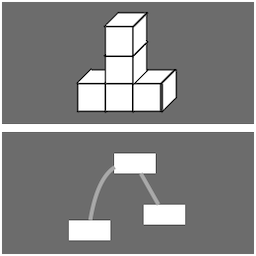
Circuit Builder | Brain Monitor
- Left panel: Circuit Builder
- Right panel: Brain Monitor
- Good for wide screens
- Most common layout
Vertical Split (Top-Bottom)
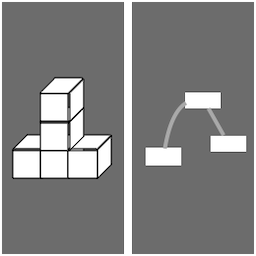
Circuit Builder (Top)
-------------------
Brain Monitor (Bottom)
- Top panel: Circuit Builder
- Bottom panel: Brain Monitor
- Good for tall screens or stacked monitors
Adjusting Split Ratio
Resizing Panels:
- Find divider between panels (vertical or horizontal line)
- Click and drag divider
- Adjust panel sizes to preference
- Typical: 50/50 or 40/60 split
Presets:
- Some versions offer preset ratios
- Quick adjustment to common layouts
- Accessible via split view controls
Working in Split View
Independent Navigation
Each panel navigates independently:
Left Panel (Circuit Builder):
- Pan, zoom, navigate 2D graph
- Open different region tabs
- Select and edit objects
Right Panel (Brain Monitor):
- Rotate, pan, zoom in 3D
- Focus on objects
- View neural activity
Both can show different views of the same or different content.
Synchronized Selection
Selection syncs between panels automatically:
- Click cortical area in Circuit Builder
- It highlights in Brain Monitor
- Click different area in Brain Monitor
- It highlights in Circuit Builder
This helps you understand both representations simultaneously.
Common Workflows
Editing Workflow:
- Create/edit connections in Circuit Builder (left)
- Verify spatial relationships in Brain Monitor (right)
- Make adjustments as needed
- See results immediately
Monitoring Workflow:
- Navigate to region in Circuit Builder (left)
- Watch neural activity in Brain Monitor (right)
- Identify active pathways
- Trace connections in 2D view
Comparison Workflow:
- Open Region A in Circuit Builder (left)
- Open Region B in Brain Monitor (right)
- Compare structures and organization
- Understand inter-region relationships
Multiple Tabs in Split View
Tab Containers
Each panel can have multiple tabs:
Primary Panel (Circuit Builder):
- Open multiple regions as tabs
- Switch between them
- Each tab shows different region
Secondary Panel (Brain Monitor):
- Open multiple 3D views as tabs
- Each shows different region in 3D
- Switch independently from primary panel
Managing Tabs
Opening Tabs:
- Right-click a circuit and choose Open 3D Tab
- Hover Circuits and select an entry to focus it in the current view
- Switch using the tab bar
Closing Tabs:
- Click X on tab
- Right-click tab → Close
- At least one tab remains open
Switching Tabs:
- Click tab to activate
- Keyboard shortcuts (if available)
- Each panel switches independently
Best Practices
Layout Recommendations
Widescreen (16:9 or wider):
- Use horizontal split (side-by-side)
- 50/50 or give more space to whichever you use more
- Room for both views comfortably
Standard (4:3 or 16:10):
- Try both orientations
- Consider which view needs more space
- Adjust ratio to emphasize primary view
Multi-Monitor:
- Consider full screen in each monitor
- Or use split view in main monitor
- Drag tabs between windows
Workflow Strategies
Structure First:
- Start with Circuit Builder focused
- Build your circuit structure
- Glance at Brain Monitor for spatial layout
- Adjust as needed
Activity Monitoring:
- Set up view in Split View
- Emphasize Brain Monitor (larger panel)
- Use Circuit Builder to identify areas
- Watch activity patterns in 3D
Complex Editing:
- 50/50 split
- Edit in Circuit Builder
- Constantly verify in Brain Monitor
- Iterate quickly
Organization Tips
Same Region Both Sides:
- Best for understanding single region
- See all perspectives of one area
- Edit and monitor simultaneously
Different Regions:
- Compare functionality
- See how regions relate
- Work on one, reference other
Parent-Child Regions:
- Parent region in one panel
- Child region in other panel
- Understand containment relationships
Performance in Split View
Resource Usage
Split View uses more resources:
- Two views rendering simultaneously
- Both update in real-time
- May impact performance on large genomes
Optimization:
- Close unnecessary tabs
- Reduce activity rendering quality if needed
- Use split view on one region at a time
Large Genomes
For genomes with many areas:
- Use region-specific 3D tabs instead of whole genome
- Focus on relevant sub-circuits
- Close split view when not actively using both
- Adjust rendering settings for performance
Deactivating Split View
Return to Single View
Method 1:
- Hover Split view on the root scene top bar and choose Circuit Builder or Brain Monitor
- Returns to Circuit Builder only
- Or Brain Monitor only (depending on last active)
Method 2:
- Close all tabs in one panel
- Automatically returns to single view
Method 3:
- Use view controls to select single view mode
Choosing Primary View
When exiting split view:
- Usually returns to Circuit Builder
- Or last active panel becomes primary
- Can be configured in some versions
Advanced Split View
Triple Pane (if available)
Some versions may support three panes:
- Circuit Builder
- Brain Monitor 1
- Brain Monitor 2
Allows even more comparison options.
Floating Windows
Drag tabs out to separate windows:
- Click and drag tab
- Drag outside main window
- Becomes independent window
- Position on different monitors
Provides ultimate flexibility.
Custom Layouts
Save and load split view configurations:
- Remember panel sizes
- Remember which tabs are open
- Quick restore of work environment
(Feature availability varies by version)
Common Use Cases
Creating a New Circuit
- Activate Split View: Open 3D tab from Main Circuit
- Left Panel: Create cortical areas in Circuit Builder
- Right Panel: See where they appear spatially in Brain Monitor
- Create Connections: In Circuit Builder
- Verify: Check connection lines in both views
- Test: Watch activity in Brain Monitor
- Adjust: Edit based on observations
Debugging Connections
- Activate Split View
- Circuit Builder: Identify connection to check
- Brain Monitor: Verify spatial relationship makes sense
- Circuit Builder: Edit if needed
- Brain Monitor: Confirm changes
- Test: Monitor activity flow in both views
Exploring Genome
- Start with Overview: Main Circuit in both panels
- Focus on Region: Click region in Circuit Builder
- Observe in 3D: See spatial layout in Brain Monitor
- Dive Deeper: Double-click to open region
- Navigate: Use split view at each level
- Understand: Build complete mental model
Validating Connectivity Rule Changes
- Open mapping in Circuit Builder
- Make connectivity rule changes
- Observe in Brain Monitor how connections update
- Iterate without switching tabs
- Confirm expected behavior
Troubleshooting
"Split view won't activate"
- Ensure you're right-clicking a circuit (not cortical area)
- Try manual split view toggle
- Check that genome is loaded
- Restart application if needed
"Views don't sync"
- Should sync automatically
- Try clicking object in each view
- Check selection system is working
- Report bug if persistent
"Performance is poor"
- Close unnecessary tabs
- Disable global neural connections in one view
- Use region-specific 3D tabs (not whole genome)
- Consider single view for complex operations
"Can't resize panels"
- Look for divider line between panels
- Must click precisely on divider
- Some versions may have fixed ratios
"Lost split view layout"
- Reactivate using Open 3D Tab
- Or use split view toggle
- Layout may not persist between sessions
Tips for Mastery
- Use Keyboard Shortcuts: Faster panel navigation
- Keep Split View Open: Don't toggle on/off constantly
- Adjust Ratios: Give more space to active view
- Sync Advantage: Let selection sync guide understanding
- Tab Management: Keep relevant tabs open, close others
- Practice: Split view becomes natural with use
- Monitor First: Start monitoring in split view from beginning
Related Topics
- Circuit Builder - Left panel functionality
- Brain Monitor - Right panel functionality
- Navigation Basics - Moving in both views
- Brain Circuits - Opening regions in split view
- UI Controls - Layout and interface controls